Offer Redemption Report
The Offer Redemption report allows users to track the guest and booker details of reservations that have an offer redeemed.
Perform the following steps to generate the report:
Navigate to Reports ➜ Dynamic Reports ➜ Guests/Reservations ➜ Offer Redemption.
Refer to the following table and fill in the fields.
|
Field |
Description |
|---|---|
|
Start Date |
The start date from which the report must be generated. By default, the current property date is displayed. This is a mandatory field that allows users to select a date that is a maximum of 365 days prior to the current property date. |
|
End Date |
The end date up to which the report must be generated. By default, the current property date is displayed. This is a mandatory field that allows users to select a date that is a maximum of 30 days from the start date. |
|
Property |
The property for which the report must be generated. This is a mandatory single-select drop-down list that displays all properties under the tenant. Users can select the preferred property for generating the report. |
|
Group By |
This is a mandatory single-select drop-down list that allows users to select from the following options:
Guest Name: When selected, the records are grouped and displayed based on the guest name associated with the reservations. |
Click Run to generate the report.
Click Save to save the report under User Favorites section.
Sample Report
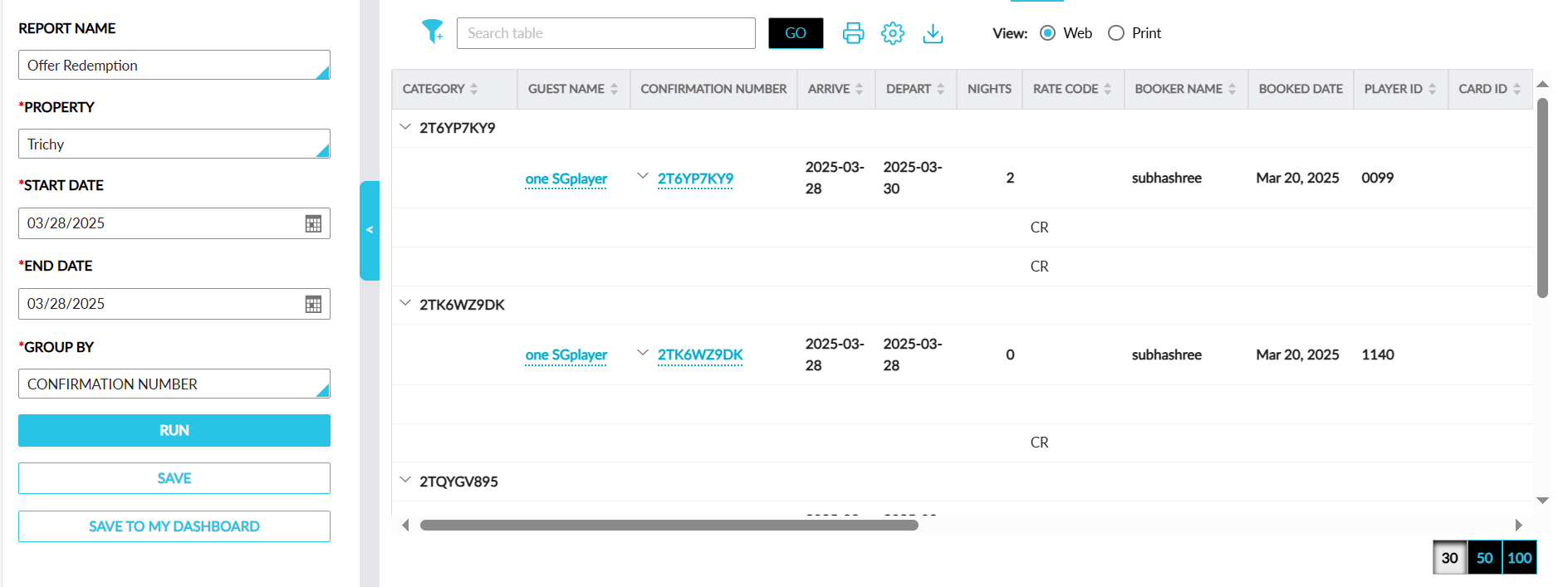
Report Fields
This report displays the following fields:
|
Field |
Description |
|---|---|
|
Category |
The confirmation number or the guest name associated with the reservation based on the option selected in the Group By field. This column can be sorted. |
|
Guest Name |
The name of the guest associated with the reservation. Users can search for a record using this value. This column can be sorted. |
|
Confirmation Number |
The confirmation number of the reservation. Users can search for a record using this value. |
|
Arrive |
The arrival date of the reservation. This column can be sorted |
|
Depart |
The departure date of the reservation. This column can be sorted. |
|
Nights |
The total number of stay nights of a reservation. |
|
Rate Code |
The rate plan code of the reservation. Users can filter and search for a record using this value. This column can be sorted. |
|
Booker Name |
The name of the booker associated with the reservation. Users can search for a record using this value. This column can be sorted. |
|
Booked Date |
The date when a reservation was booked. Users can filter records using this value. |
|
Player ID |
The patron ID of a patron. Users can filter and search for a record using this value. This column can be sorted. |
|
Card ID |
The card ID of a patron. Users can filter and search for a record using this value. This column can be sorted. |
|
Name |
The name of the offer. Users can filter and search for a record using this value. This column can be sorted. |
|
Code |
The offer code. Users can search for a record using this value. This column can be sorted. |
|
Authorizer Name |
The name of the authorizer. Users can search for a record using this value. This column can be sorted. |
|
Authorizer Code |
The code of the authorizer. Users can search for a record using this value. This column can be sorted. |
|
Department |
The name of the department. Users can search for a record using this value. |
|
Type |
The type of offer displayed as either Admin or Casino. Users can search for a record using this value. |
|
CMS |
The name of the casino management system. Users can search for a record using this value. |
|
Applied Nights |
The number of nights for which the offer is applied. |
|
Applied Per Night |
The offer amount applied per night. This column can be sorted. |
|
Redemption Status |
The status of the redemption of offers. The following values are displayed for casino offers:
Users can filter and search for a record using this value. This column can be sorted. |
|
Redeem Failure Reason |
The reason for the failure of redemption of an offer. |